A practical guide to the everyday things that make VR easier: getting comfortable, using the controllers, seeing your room, charging properly, and finding your way around.
When I first wanted to get into VR, I was thinking about the experience—playing laser tag with people—not a list of buttons. But the small things matter. How do I get back to the menu? Why does the headset charge while the controllers need batteries? What does tapping the side actually do?
This guide is for those first few days. It focuses on Quest 3 and Quest 3S, with notes for Quest 2 and Quest Pro where the hardware differs. Meta changes the interface through updates, so labels and shortcuts can vary. Use the search inside Settings when a menu has moved.
1. Get ready before you put it on
Give yourself time for setup. Have the headset, controllers, supplied charger, your phone and your Wi-Fi details nearby. Follow the headset’s prompts and pair it with the Meta Horizon mobile app when asked. Keep account passwords and recovery details somewhere you can find them again.
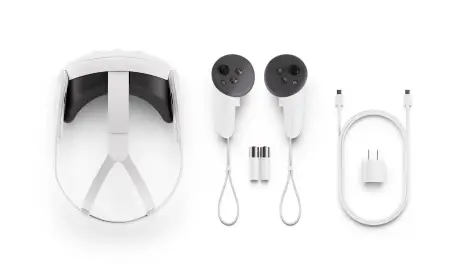
Charge the headset before a first session. Check the controller battery tabs have been removed and attach the wrist straps. The straps are useful even for a gentle first session: a controller can slip when you forget you are holding something in the real world.
Fit the headset, rather than tightening everything
Loosen the straps, put the headset on, then adjust until the display is clear and the weight feels supported. Move it a little up or down before deciding the lenses are blurry. Set the lens spacing for your eyes: Quest 3 has continuous adjustment; Quest 3S has three positions. Follow the fit instructions for your model, especially if you wear glasses. Keep spectacle lenses from rubbing against the headset lenses.
Make a clear activity space
Clear obstacles and leave a buffer around your space. Check above you as well as at floor level. Set up the boundary when prompted and select a sitting, standing or roomscale experience that fits the room. Meta recommends at least 2 × 2 metres for roomscale. Pets and people can enter after you draw a boundary, so it is not a substitute for keeping the space clear.
Source: Meta’s safety centre and activity-space guidance ↗
Open a calm app or the headset tutorial. Try selecting a menu item, opening the system menu, recentering your view and returning to passthrough. Repeat those actions until they feel familiar.
2. Understand the controllers 🎮
Think of the controller as three places for your fingers: your thumb on the top controls, your index finger on the trigger, and your middle finger near the side grip. The exact action depends on the game, but this is the usual pattern.
| Control | Where | What to expect |
|---|---|---|
| Trigger | Under your index finger | Select a pointed-at menu item; often used for an action in games. |
| Grip | Side of the handle | Often grabs or holds virtual objects. |
| Thumbstick | Top of each controller | Commonly moves or turns you; some menus use it to scroll. |
| A / B | Right controller | App-specific actions, such as confirm, jump or back. |
| X / Y | Left controller | App-specific actions; check the app’s tutorial. |
| Meta button | Right controller | Press for the system interface; hold to recenter your view. |
| Menu button | Left controller | Usually opens the app’s menu where supported. |
To recenter, look in the direction you want to face, then hold the Meta button until the process finishes. This reorients the view; it does not make an unsafe play area safe or erase the need for a boundary.
Source: Meta’s system-menu and recenter interaction reference ↗
Hand tracking is another input method
Supported apps and the system interface can work with tracked hands. Follow the visible gesture tutorial—pointing and pinching are common selections, while some interfaces also offer direct touch. Keep your hands in view of the cameras and use good room lighting. A controller-based game may still require controllers.
Controller batteries are separate
The standard Quest 2 Touch and Quest 3 / 3S Touch Plus controllers use one AA battery per controller. Plugging in the headset does not charge those AA cells. Replace batteries using the compartment markings. Rechargeable AA cells need their own compatible charger. Never try to recharge disposable batteries.
Touch Pro controllers are different: they have built-in rechargeable batteries. Optional Touch Plus docks may use their own compatible rechargeable packs. Check the exact dock, controller and battery instructions before mixing accessories.
Source: Meta’s Touch Plus specifications ↗
3. See your room: side tapping and passthrough
Passthrough is the camera view of your surroundings. It is handy when you need to find a controller or check what is happening around you. It can also form the background of a mixed reality app.
Quest 3
Double-tap the side of the headset to switch the view. Use two deliberate taps on the side arm—not the lenses, front cameras or power button. Do not hit the headset hard.
Quest 3S
The action button underneath the headset provides a hardware shortcut for switching between your room and virtual surroundings. If you have reassigned it in a newer software version, check its current action in Settings.
Quest 2 and Quest Pro also use a double-tap passthrough shortcut. Older guides show an enable/disable toggle, but its availability has changed between software builds. If you cannot find that toggle, do not assume you missed a step. Search Settings for passthrough and follow the options your version actually offers.
If an adjustment to the strap unexpectedly activates passthrough, pause the game and adjust the fit. Switching to the camera view does not guarantee that an online game has paused. When in doubt, use the app’s own pause or exit menu.
Source: Meta Community discussion documenting the changed shortcut toggle ↗
Passthrough is not a replacement for unobstructed vision. Remove the headset for stairs, carrying hot drinks, or moving to another room. Keep the boundary and other safety features enabled as instructed.
Source: Meta’s passthrough safety guidance ↗
4. Charge the headset and look after the battery 🔋
The headset has an internal rechargeable battery. Use the supplied power adapter and USB-C cable, on a stable, dry surface with airflow. Check the cable and port before connecting, and insert the connector without forcing it. Avoid pulling sideways on the cable or resting weight on the connector.
The time to fill the battery depends on the starting charge, model, temperature and whether the headset is active. An app can consume power while the charger supplies it, so a low reading during use does not by itself prove the charger is faulty.
What does “avoid overcharging” really mean?
There is no useful benefit in leaving the headset connected indefinitely after it is full. Meta support recommends disconnecting for prolonged periods when it is not in use; unplugging when charging is finished is a straightforward routine. You do not need to panic if you occasionally forget.
A rechargeable battery ages over time. Heat, usage and spending long periods at a high charge can affect capacity. Follow Meta’s battery-care guidance rather than trying to keep the headset on charge all day. For long-term storage, Meta support recommends roughly 50% charge at room temperature.
Source: Meta support advice on disconnecting after charging ↗
Source: Meta support battery and storage guidance ↗
A few habits that make a difference
- Keep the headset and power adapter uncovered while charging.
- Avoid hot cars, direct sunlight, liquids and damaged charging accessories.
- Do not keep using a device or cable that becomes abnormally hot, smells unusual or shows damage. Disconnect safely and contact Meta support.
- Use the power menu to shut down for a long break. A short power-button press generally sleeps or wakes the headset; sleep is not full shutdown.
- For a compatible battery strap or dock, follow that accessory’s instructions. Support and charging behaviour vary by model.
For a first session, charging before play is the simplest approach. A cable attached during active movement adds something to trip over and can strain the port; do not treat a short wall-charging lead as a play cable.
Source: Meta Quest 3 health and safety guide ↗
5. The everyday menu: apps, Wi-Fi and volume
Press the Meta button when you want the system interface. Look for the quick settings area to check Wi-Fi, battery level, volume and brightness. Open the app library to find installed apps. If a familiar label has moved, use Settings search rather than following a screenshot from an older update.
Install and manage apps
Read an app’s device support, comfort rating, price and any subscription requirements before installing. Leave some storage free for updates. Deleting an installation and deleting account data are different actions: check cloud-save support and the app’s own guidance before removing something you want to keep.
I group my experiences by activity in the VR app library. It’s a useful place to decide whether you want something creative, social, educational or active, rather than opening whatever happens to appear first.
Capture a moment, then check the result
Use the headset’s camera or capture controls to take a screenshot or record footage. Make a short test first, then check the video, audio and microphone options before recording a longer session. Casting is a live view sent to another screen; recording saves a clip. App restrictions can affect both.
For a streamer, this matters beyond the technical settings. Ask before recording other people in a social world, check the community’s rules, and keep account details or private notifications out of your footage. An avatar represents a person, even if you cannot see their face.
Source: Meta’s VR and mixed reality capture guidance ↗
6. Comfort, breaks and cleaning
Start with a comfortable, low-movement experience. If you feel dizzy, nauseated or uncomfortable, stop and remove the headset. Do not try to push through a session just to finish a level. Games with teleport movement and snap turning can be a gentler starting point than continuous movement, where those options are available.
Check the fit again if you are getting pressure on your face. Take regular breaks and let the headset cool and dry after an active session. A clean interface is more pleasant when you return—and especially important if you share the headset.
Keep the lenses away from direct sunlight, including when the headset is sitting unused. Use a clean, dry optical microfibre cloth on the lenses. Follow Meta’s model-specific cleaning instructions for the interface and straps; avoid alcohol or solvents on the lenses. Let removable parts dry fully before reinstalling.
Source: Meta’s device cleaning instructions ↗
7. A quick fix checklist
My controller is not responding
Check its battery and battery orientation, then make sure the headset’s tracking cameras are unobstructed and the room is lit. Try another supported app to separate an app issue from a controller issue. If you need to pair again, use the controller pairing instructions in the Meta Horizon app or Meta support for your model.
The view is facing the wrong direction
Look where you want the interface, then hold the right controller’s Meta button to recenter. If the floor or play area is wrong, revisit the boundary setup rather than only recentering.
I cannot find a setting from a tutorial
Confirm your headset model and software version. Search inside Settings and check the current Meta help page. Updates roll out gradually; two headsets may not have exactly the same interface.
The headset will not charge normally
Check the socket, supplied adapter, cable and connector for a secure connection or visible damage. Let a warm headset cool before trying again. A persistent fault, damaged port or unusual heat calls for Meta support—not a forceful connector adjustment or a home repair.
The battery falls while the headset is “off”
Check whether it was sleeping or fully shut down. Background updates and wake behaviour differ by settings and software. If the drain is substantial or persists after a proper shutdown, contact support with the model and software version.
Now choose an experience
You do not need to learn everything in one session. Get comfortable with the basics, then pick one thing you actually want to do.
Explore my Quest library →Read the Quest history and model comparison →
Guide checked 2 October 2026. Menu names and features can change with Horizon OS updates. Consult the current Meta support centre and your model’s safety guide for detailed troubleshooting.